Free guide · web version and 30-page PDF
Copilot Studio agent and Revit MCP implementation guide
This guide connects a Microsoft Copilot Studio agent to a Revit 2027 model open on a Windows PC, so staff can ask questions about a live model from Copilot or Teams. It is written for a firm's technology lead or BIM manager.
AEC Hub tested the Copilot Studio setup on one PC on October 26, 2026. The November update adds the Switchgear pilot results and a rollout checklist for firms.
Switchgear is AEC Hub's Revit MCP connector. Your team can use it in Microsoft 365 Copilot to count doors, add a door to an existing wall or build a new wall.
Explore Switchgear for RevitWhat the guide covers
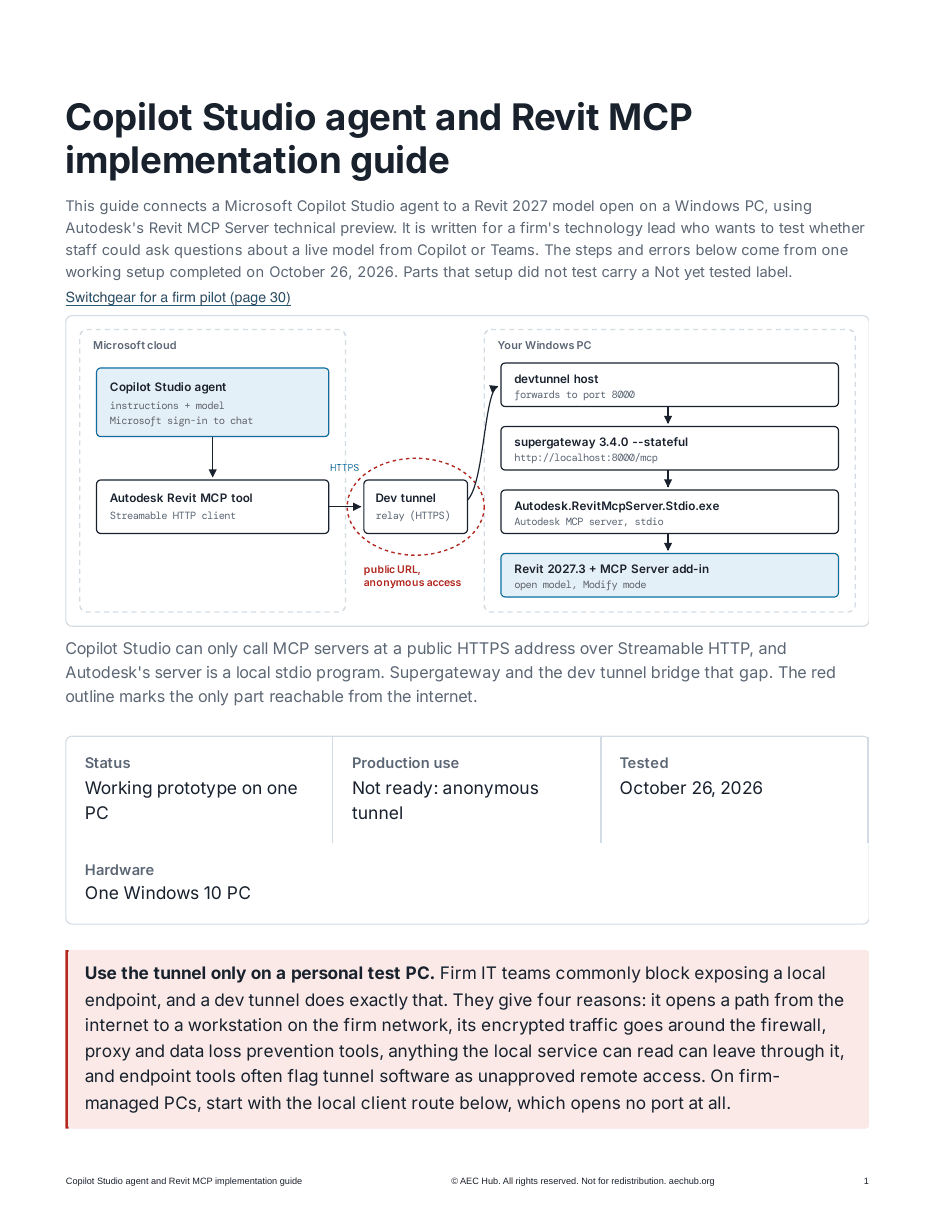
- The guide lists every component and version in the tested setup, from Revit 2027.3 and Autodesk's MCP Server preview to supergateway 3.4.0 and the Microsoft dev tunnels CLI.
- Thirteen setup steps cover the Microsoft tenant and billing, the agent in Copilot Studio, the Windows PC with Revit, and the connection between them, with PowerShell scripts for the PC.
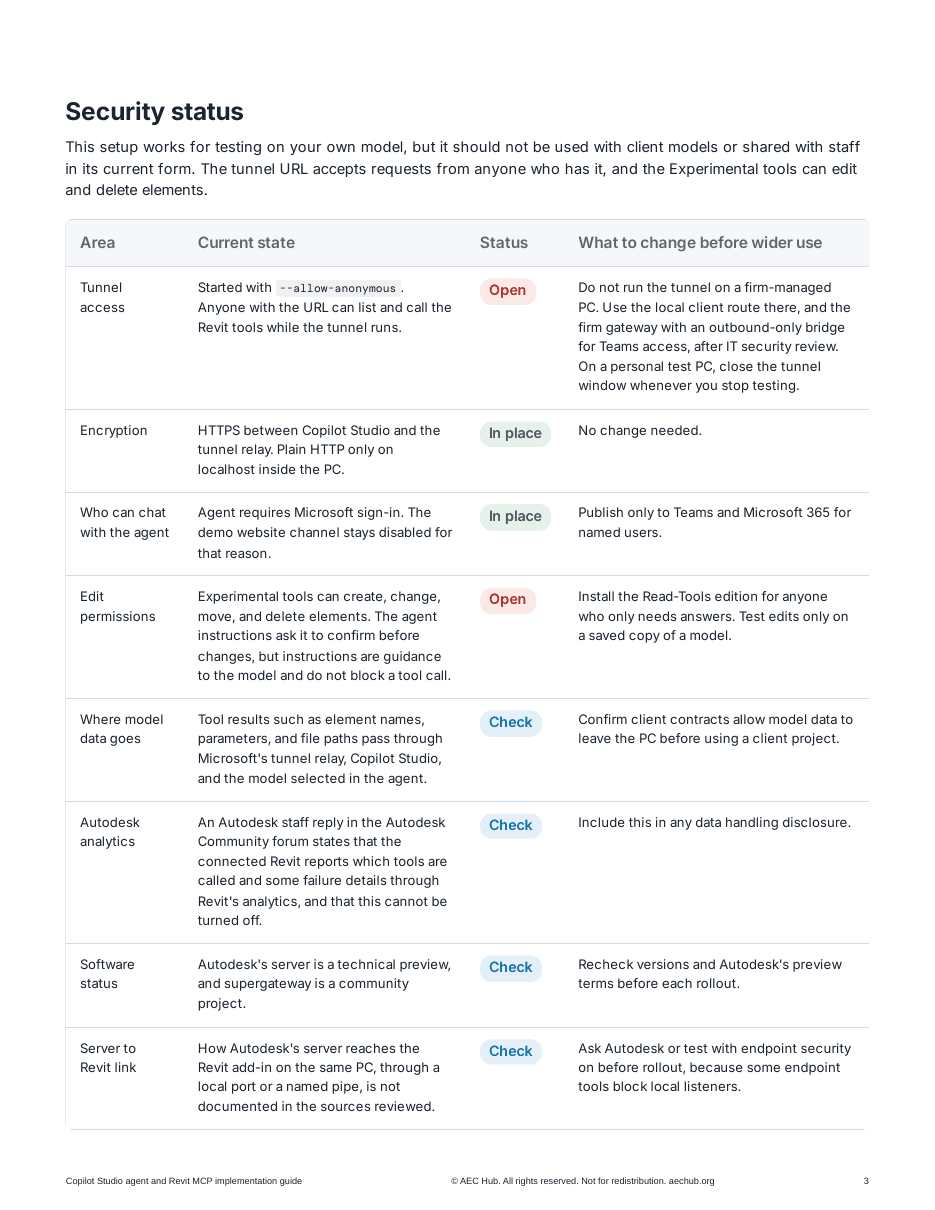
- A security table marks each part of the setup as open, in place or to check, including the anonymous tunnel and the experimental tools that can edit and delete elements.
- The costs section explains the Copilot Credits billing that blocked Preview in testing, and which licenses you need before staff can use the agent in Teams.
- The Switchgear section explains what IT assigns once, what each Revit user installs, which model data passes through AEC Hub, and how to test two workstations before a wider rollout.
- For firms that want to run their own gateway, the guide compares six connection options and estimates the monthly cost of hosting in Azure.
- A troubleshooting section lists the errors seen during setup and what fixed each one.
The tested setup uses an anonymous dev tunnel, so the guide recommends running it only on a personal test PC. On firm-managed PCs it describes a local client route that opens no port.
Get the guide